How to Install NAPLAN Locked Down Browser on Windows
⚠️ System Requirements: NAPLAN locked down browser requires a minimum version of Windows 10 21H2 or later.
You can check your version of Windows by following the instructions
here.
Step 2: Download the installer
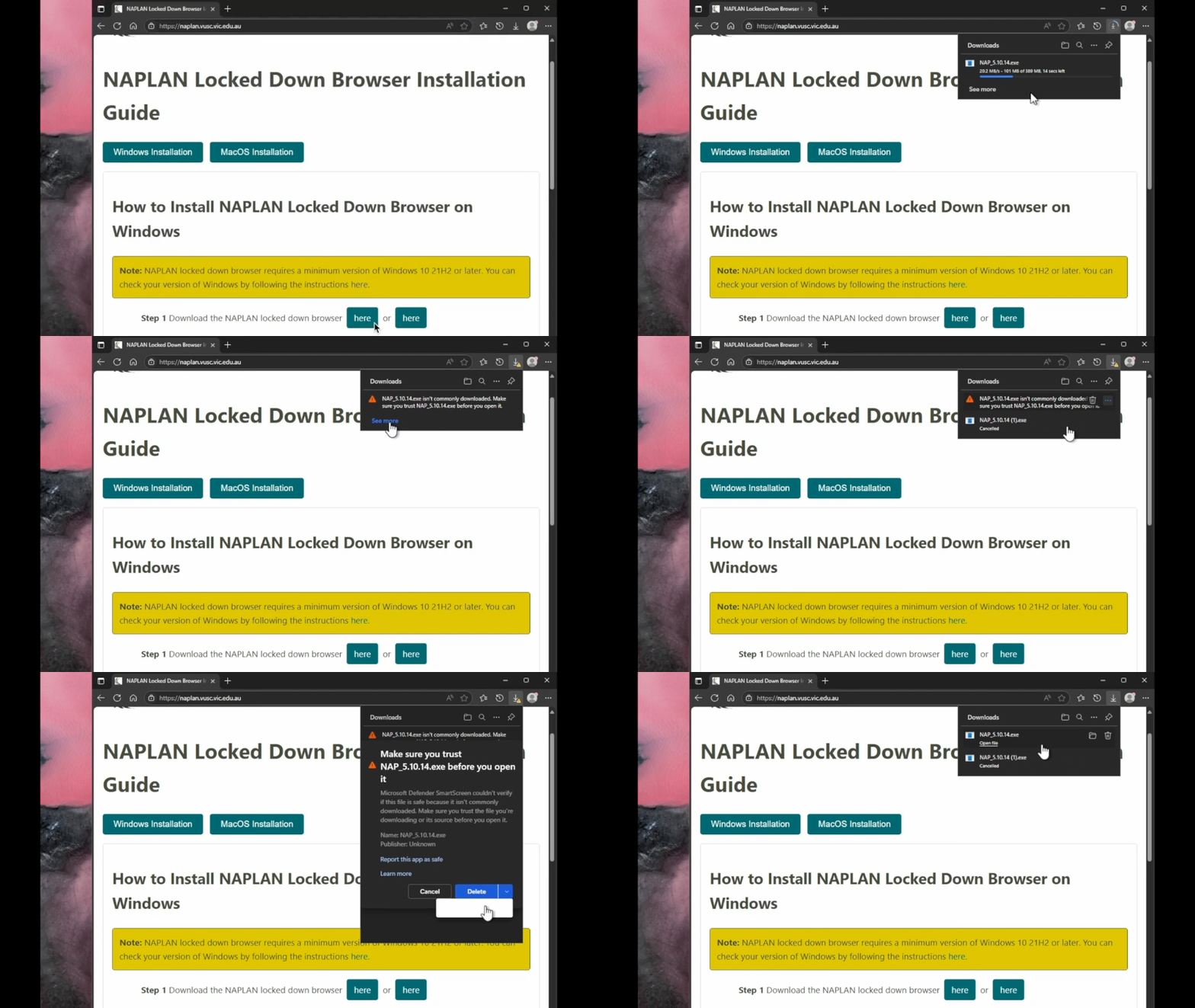
Click the button below to download the NAPLAN locked down browser installer file.
If your browser shows a warning about the download, choose "Keep Anyway" or "Keep" to continue with the download.
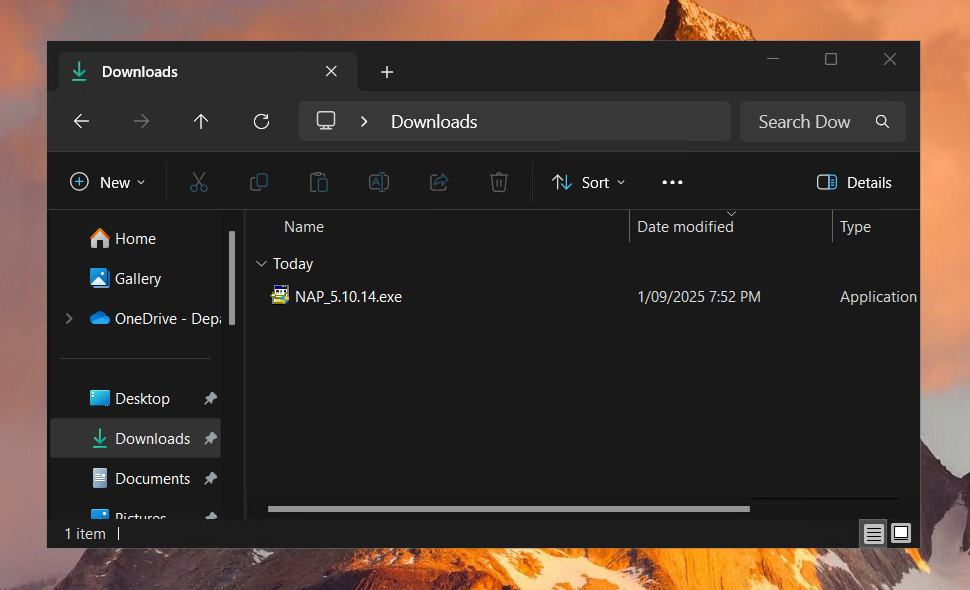
Step 4: Locate the downloaded file
Open your Downloads folder using File Explorer. Look for the file named NAP_5.11.0.exe
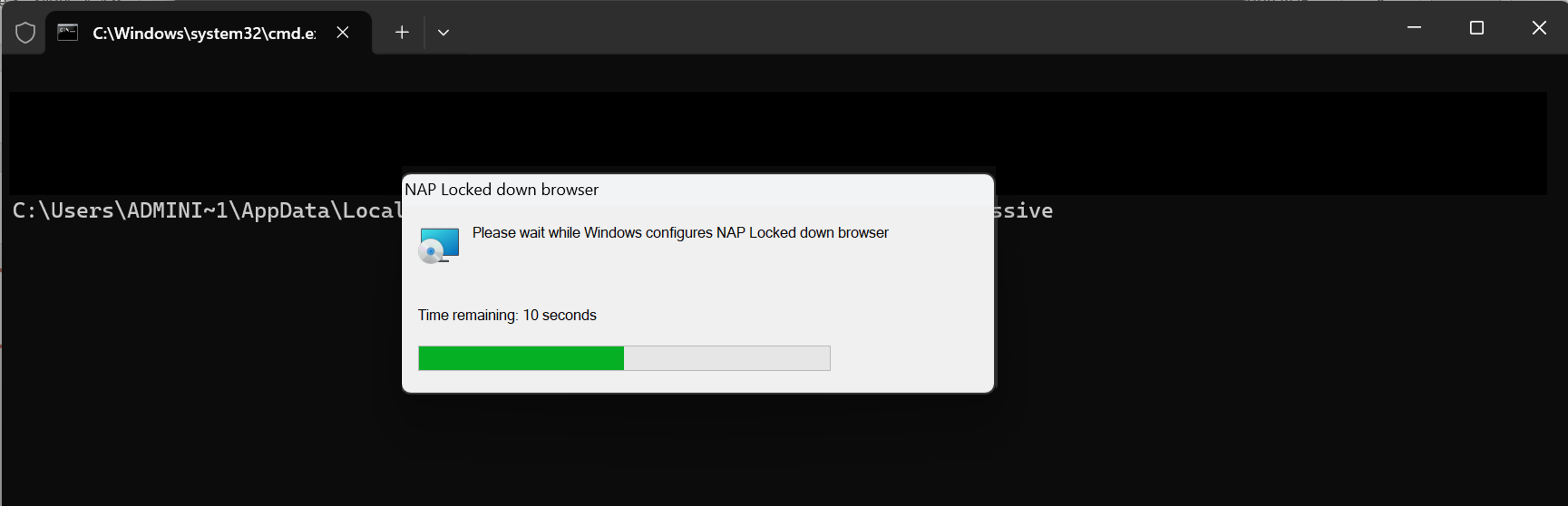
Step 5: Run the installer
Double-click the NAP_5.11.0.exe file to start the installation. The installation wizard will launch automatically. Wait for the installation to complete - do not close any windows or pop-ups during this process.
Step 6: Verify installation
Look for the green NAP 2026 icon on your Desktop. This confirms the installation was successful.
✅ Testing your installation Double-click the desktop icon ONCE only to test.
The NAPLAN Locked Down Browser may take a minute or so to open - please be patient. If it opens successfully, you're all set and ready for the upcoming NAPLAN online assessments!
How to Install NAPLAN Locked Down Browser on MacOS
⚠️ System Requirements: NAPLAN locked down browser requires a minimum version of macOS 12 or later.
You can check your version of macOS by following the instructions
here.
Step 2: Download the installer
Click the button below to download the NAPLAN locked down browser installer file.
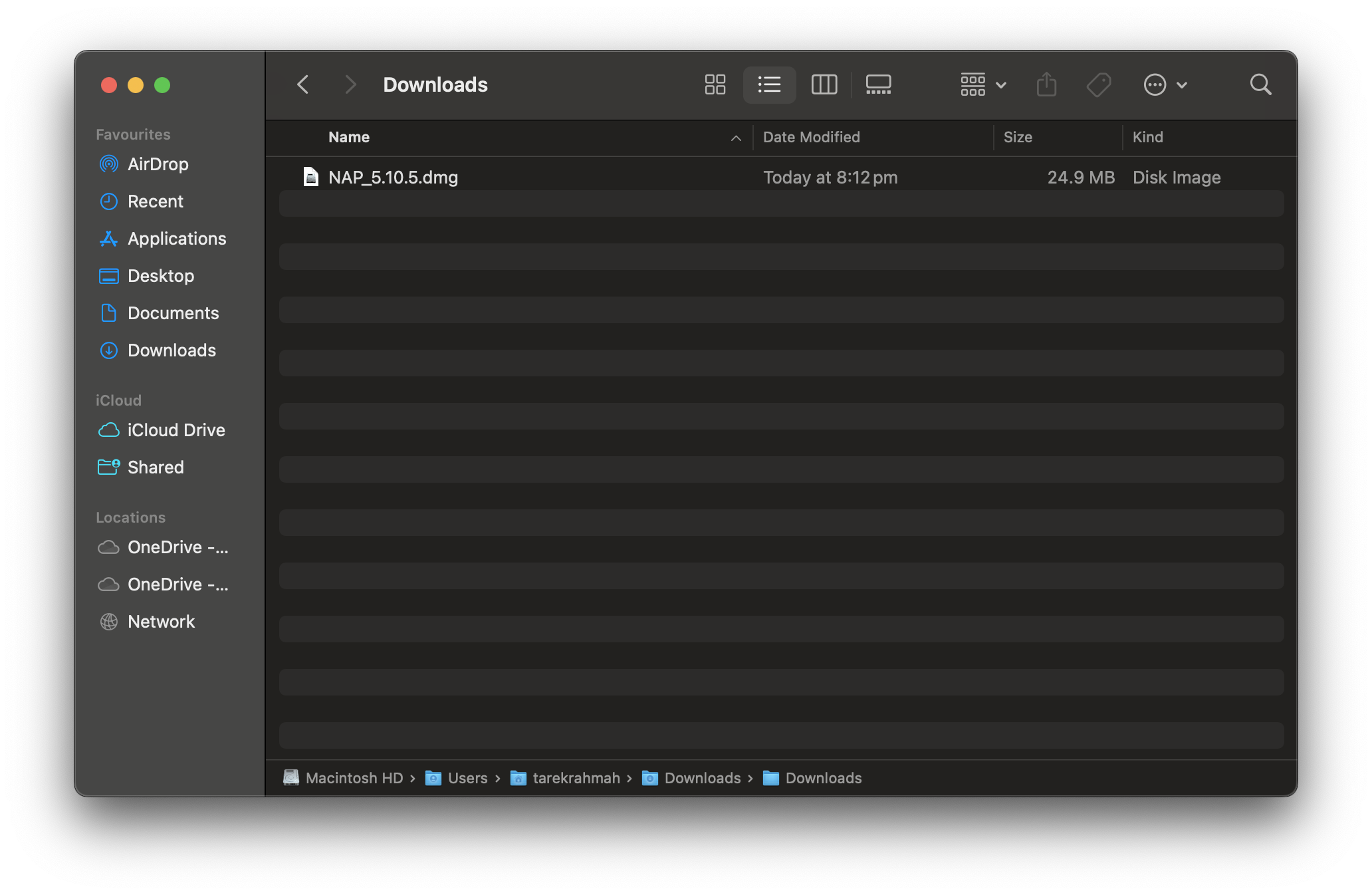
Open your Downloads folder and find the file named NAP_5.10.5.pkg
Step 4: Launch the installer
Double-click the NAP_5.10.5.pkg file to launch the installer.
Step 5: Install the application
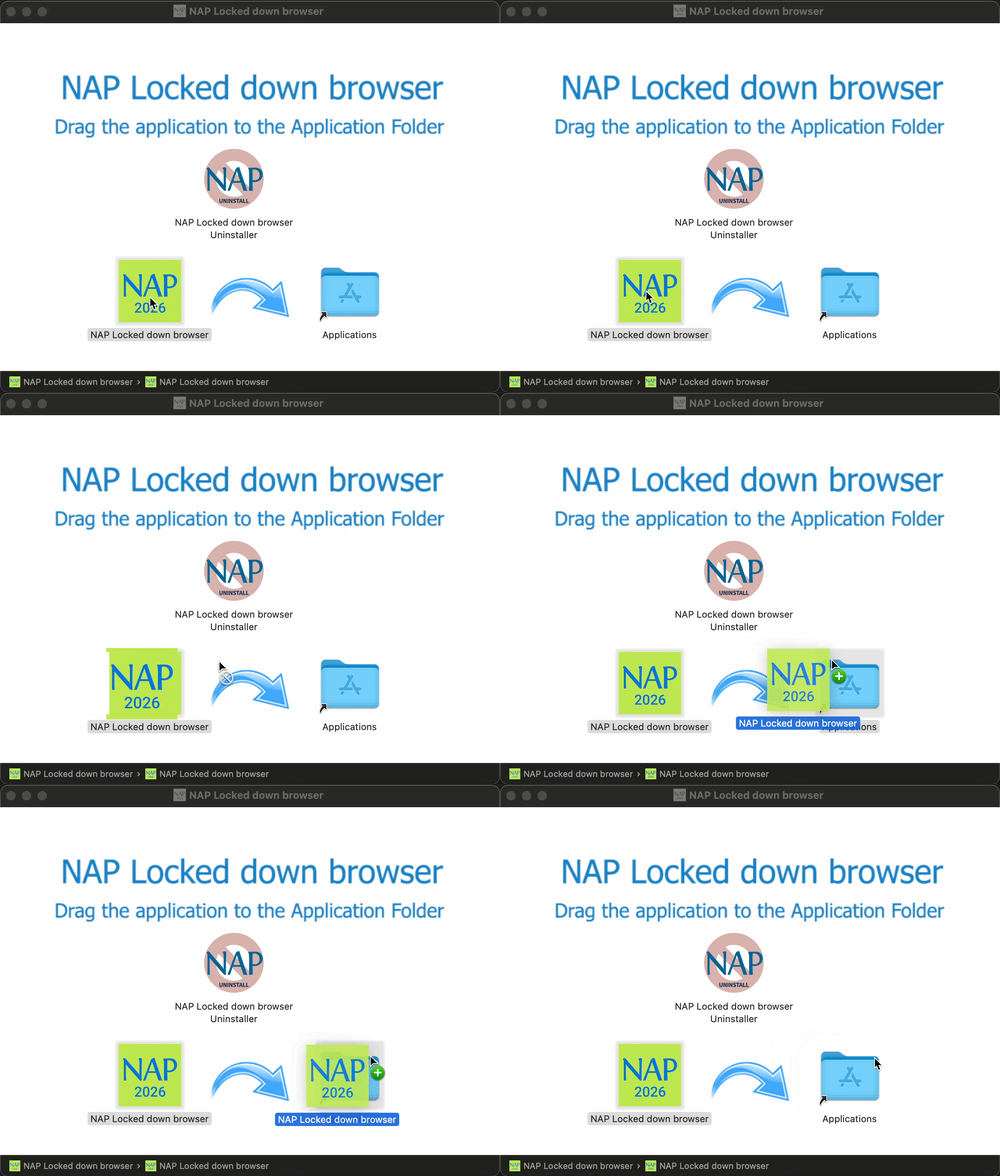
In the installer window, drag the NAP 2026 icon to the Applications folder to install the software.
Step 6: Verify installation
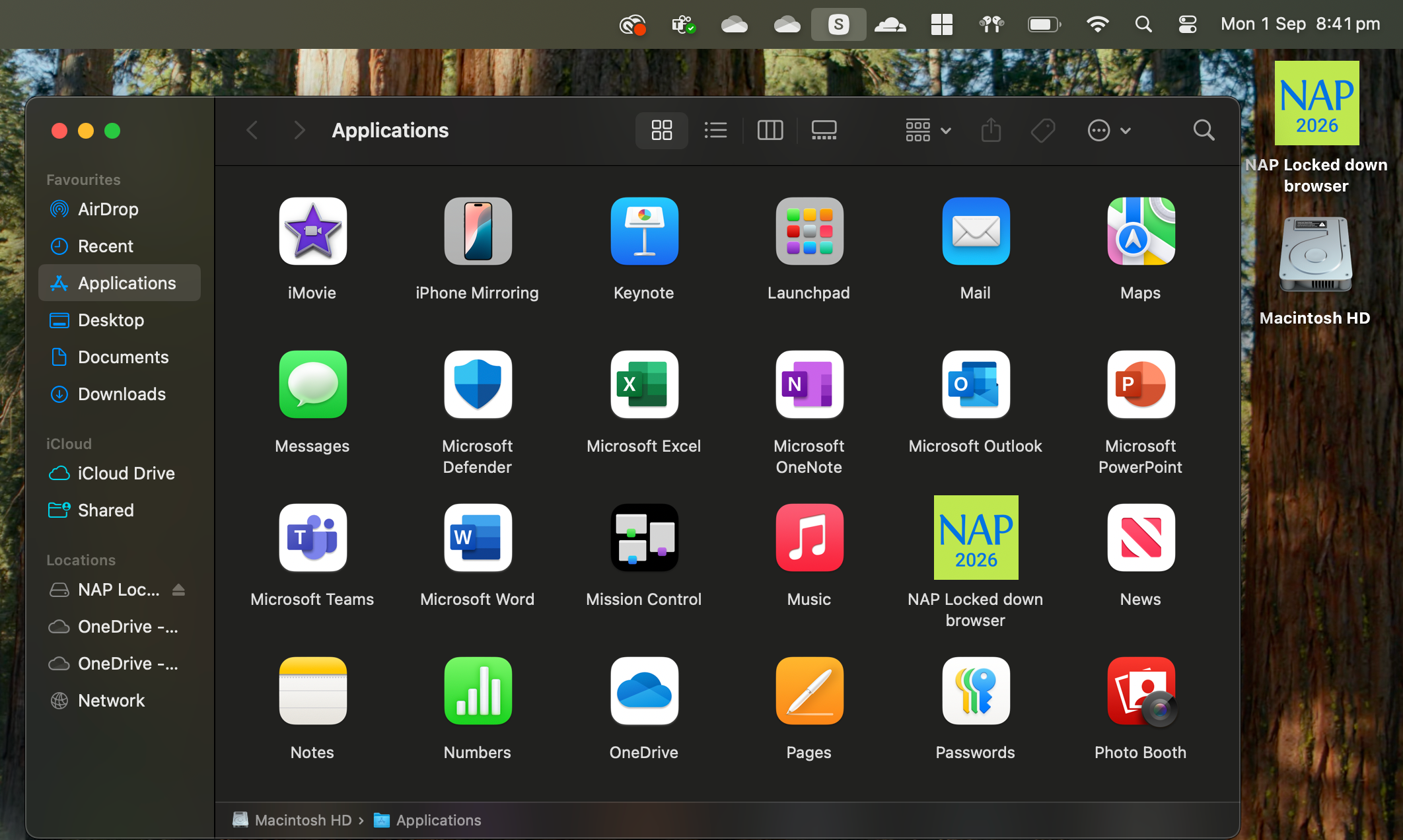
Check your Desktop or open the Applications folder to confirm you can see the green NAP Locked down browser 2026 app icon.
✅ Testing your installation
Double-click the app icon to test. The NAPLAN Locked Down Browser may take a minute or so to open - please be patient. If it opens successfully, you're all set and ready for the upcoming NAPLAN online assessments!